
Practical guide
How to Turn AI-Generated HTML into a Properly Paged PDF
Do not convert the file yet. Fix the wording and page structure first, check the actual pages, then produce the PDF.
Open the AI-generated HTML in HandpressTM. Edit the visible document, add page control, watch the layout in True Pages, then use Preview & PDF. In the Windows print dialog, choose Microsoft Print to PDF and save the result. Keep the edited HTML as your master copy.
What you need before you start
You need a Windows PC, Handpress and an HTML document. Handpress opens .html and .htm files, or raw HTML pasted from an AI chat. It does not open Word documents or PDFs for editing.
The best starting file is one self-contained HTML document with its writing, images and CSS together. Handpress includes a prompt that tells an AI chat how to build a suitable file.
- Get the AI to supply one self-contained HTML file.
- Open the file in Handpress and edit the words and design.
- Add A4 page control, then set the important page breaks.
- Check the live pages in True Pages.
- Open Preview & PDF and inspect the complete document.
- Save the HTML master and produce the PDF through Microsoft Print to PDF.
The complete process
Step 1
Ask for HTML, not a finished PDF
Tell your AI chat what the document needs to contain, then ask it for one self-contained HTML file. HTML can carry the words, typography, colour, boxes, tables, images and page designs in the same file.
Do not ask the AI to lock the document into print pages. Handpress adds the page geometry after the file opens, when you can see the content and make the decisions yourself.
Step 2
Open the HTML in Handpress
Drag the file onto the Handpress start screen, click to browse for it, or paste the raw HTML into the box provided. The visual editor opens the document without asking you to work in the code.
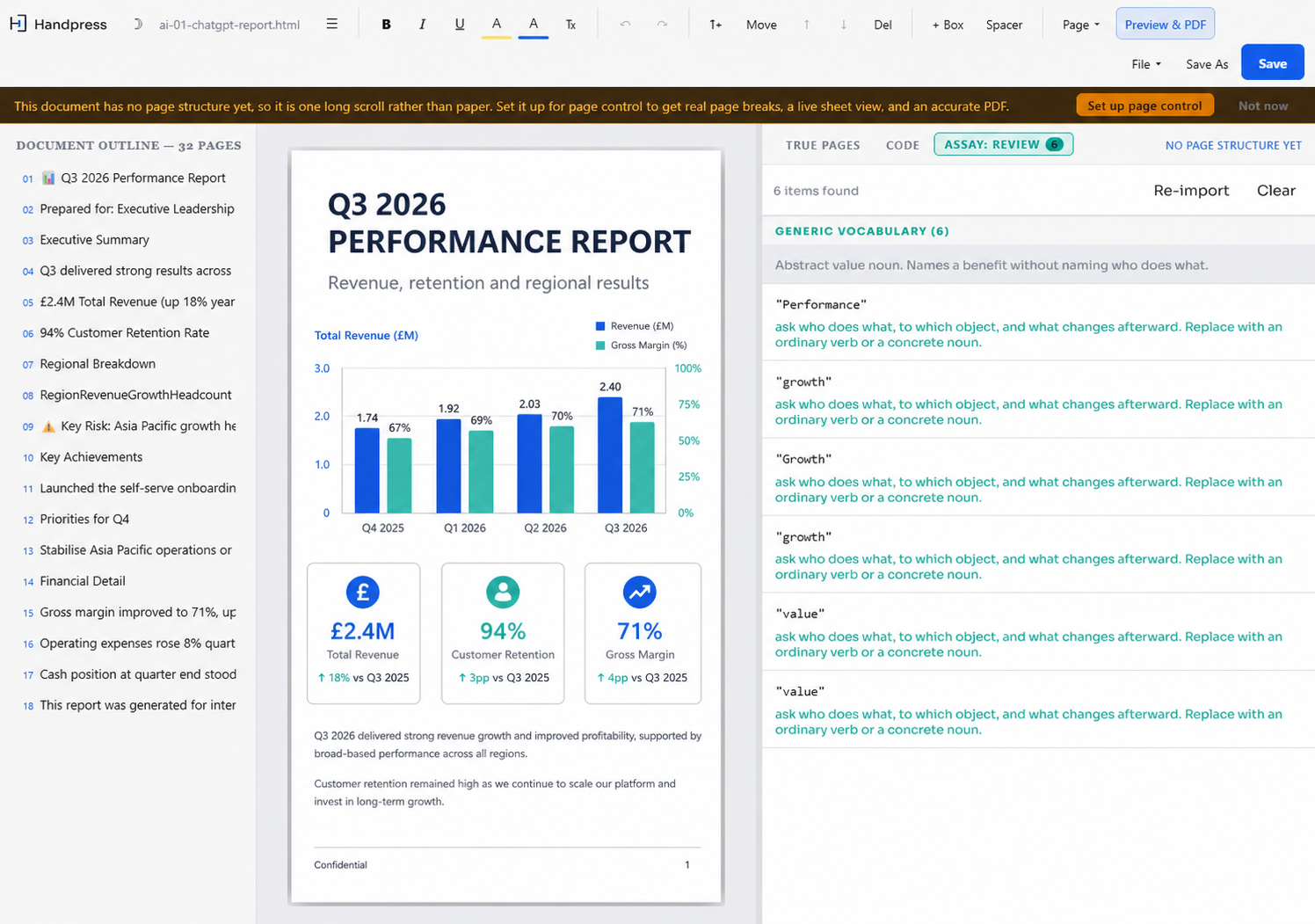
If the file has no page structure, Handpress shows an offer to set it up. Leave that banner open while you check the document, or add the pages straight away.
Step 3
Edit the document before you fix the pages
Rewrite the AI wording, remove padding, correct the examples and put your own voice back into the document. Move or delete content blocks and adjust suitable images while the document is still flexible.
Do this before the final pagination pass. A shorter paragraph or removed box can change every page that follows it.
Step 4
Add A4 page control
For a scrolling document with no page geometry, choose Set up page control. Handpress adds real A4 pages and its print engine.
Split at headings does the same job and adds a first set of page breaks at the top-level headings. Treat those breaks as a starting point. You can move or remove them.
Step 5
Set the page breaks that matter
Place the cursor in a block and use Page Break to start it on a fresh printed page. Use Keep Together when a paragraph, box or selected group of blocks must not split across a page boundary.
Watch True Pages while you work. It shows the document as real printed sheets and updates as the content changes. Click a block in True Pages to jump back to that part of the main editor.
If the editing guides say they are estimated: a large document or an unavailable print engine can make the live guide calculation time out. Preview & PDF has no timeout and remains the place to confirm exact placement.
Step 6
Save the editable HTML master
Use Save to write changes back to the open file. Use Save As to create a new file and leave the previous version untouched. If the document started as pasted HTML, the first Save asks where the file should go.
Keep this HTML file. It holds the editable document and its design, so the next correction does not begin with a flattened PDF.
Step 7
Check Preview & PDF, then produce the PDF
Click Preview & PDF. The full-screen preview shows every finished page at its real printed size. Scroll through the document and check covers, headings, boxes, images, page endings and blank space.
When it is ready:
- Click Save as PDF.
- Choose Microsoft Print to PDF in the Windows print dialog.
- Click Print.
- Choose the file name and folder when Windows asks where to save it.
Handpress uses the Windows print route rather than pretending the print dialog does not exist. The file you choose to save is the finished PDF.
Why browser printing often goes wrong
A browser starts with one long scrolling page. When you print it, the browser has to decide where the sheets begin and end. A heading can land at the bottom of one page while its paragraph starts on the next. A callout box can split through the middle. An image can push the section after it onto the wrong page.
A converter cannot correct those decisions. It turns the layout it receives into a PDF. Handpress gives you the missing editing and pagination stage before that conversion.
What this workflow does not do
- Handpress does not open a PDF, Word document, Markdown file or plain-text file for editing. Start with HTML.
- It does not rewrite the document for you. You decide what stays, what changes and when it is ready.
- It does not invent a missing visual system. Reusable boxes and page types come from designs already present in the HTML.
- PDF production uses the Windows print dialog and Microsoft Print to PDF.
- Handpress is for Windows now. Mac is coming soon.
Questions & Answers
Can Handpress turn an existing PDF back into editable HTML?
No. If the AI chat that made the PDF is still available, ask it to supply the original work as one self-contained HTML file. If it is not, copy the text out of the PDF and ask an AI chat to rebuild it as HTML. The rebuilt layout may need checking because the PDF is already flattened.
Do I need to edit the HTML code?
No. Handpress lets you work on the visible document. Its Code view is available for inspection and copying, but normal editing does not require it.
Is True Pages the same as Preview & PDF?
They use the same page engine for different jobs. True Pages stays open beside the editor and updates while you work. Preview & PDF opens the complete document at real printed size for the final check and PDF step.
Can I save the HTML without making a PDF?
Yes. Save and Save As write the edited HTML to your computer. PDF production is optional.
Does the document get uploaded?
No. Documents opened and saved in Handpress stay on your PC. Your work only returns to an AI service if you choose to paste or upload it yourself.
Handpress for Windows
Edit the document before you freeze it into a PDF.
Handpress opens AI-generated HTML, lets you edit the visible document, controls its real pages and keeps the HTML master on your computer.
Buy HandpressTM - £50